
Share Styles in GR Snap
Share Styles put a frame around a photo, or write the camera and exposure under it, at the moment you share it. The style is applied to a copy; the original file, on the phone and on the camera’s card, is never changed. Sharing with no style hands over the original file itself.
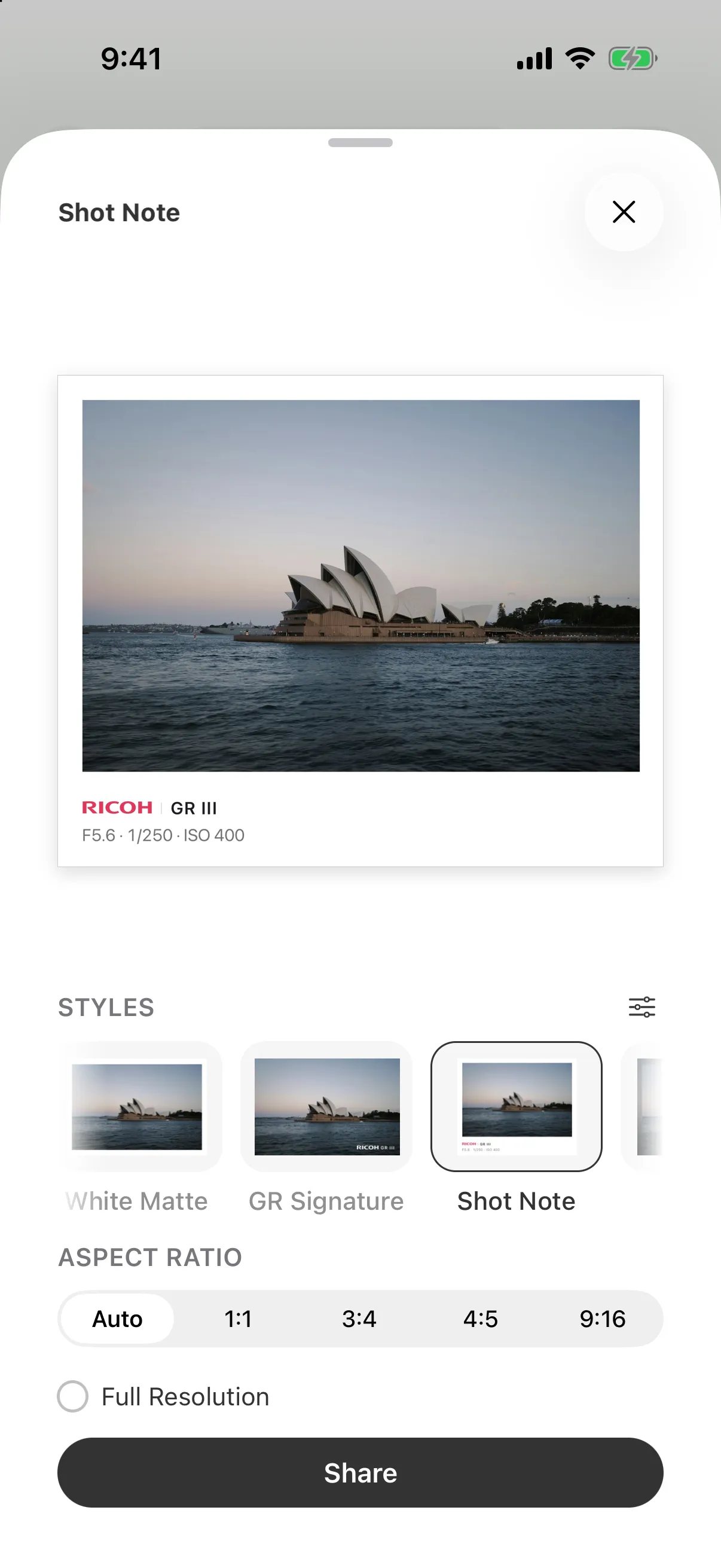
Sharing with a style
- Open a photo, from the camera or from the Library, and tap Share. You can also select several photos and share them together.
- Pick a style from the row under the preview, or No style to share the original file.
- Check the preview, then share.
A RAW+JPEG pair shares its JPEG, styled or not.
What a style is made of
A style is a frame plus a signature. Tap Edit in the style picker to change either:
- Frame: choose no frame, white, black or a soft blurred background. Use Aspect Ratio to choose the shape for a framed style.
- Signature: choose whether to show the RICOH logo, camera model and shooting details. Position it as a watermark or align it left, centre or right, then check the preview.
The camera model and shooting details are filled in automatically from the photo. A photo taken with a GR IIIx shows GR IIIx, along with the settings used for that shot.
Saving a style
After editing, tap the bookmark to save the result under a name of your choosing. Saved styles sit in the picker alongside the built-in ones (White Matte, GR Signature, Shot Note, Soft Fill and Darkroom), and the style you used last is selected first next time.
Styles are managed under Settings, then Share Styles. The switch at the top turns the whole feature off, so sharing hands over the original file; below it, you can hide styles from the picker. Long-press a style you created to rename or delete it. There is no limit on how many you keep.
What it does not do
- Add a style to a video or to a RAW file without a JPEG.
- Apply a camera recipe or image control; those are camera settings, and the signature only reports what the camera used.