
Image Sync Not Connecting? 8 Fixes for Ricoh GR Cameras
On this page
If Image Sync cannot find the camera, start with wireless settings and Bluetooth permission. If Wi-Fi connects but photos do not load, check Local Network access. Follow the steps for your camera model below.
Image Sync supports GR II and GR III / IIIx (including HDF). For the GR IV series, use GR World. GR II uses Wi-Fi without Bluetooth, so skip the Bluetooth checks.
1. Confirm wireless is enabled on the camera
On GR III / IIIx, enable Bluetooth for pairing or wireless LAN for a manual Wi-Fi connection. On GR II, enable Wi-Fi. Keep the camera awake during setup and disconnect any USB cable to a computer.
2. Check Bluetooth permission on the iPhone
Open iPhone Settings → Privacy & Security → Bluetooth and allow Image Sync. Also check that Bluetooth is on. This step applies to GR III / IIIx.
3. Check Local Network permission
Open iPhone Settings → Privacy & Security → Local Network and enable Image Sync. If the setting was disabled, reconnect after changing it; restart the iPhone if the change does not take effect. If photos load but cannot be saved, also check the app’s Photos permission.
4. Turn off your VPN
A VPN or network filtering app can interfere with access to the camera. Temporarily pause it and reconnect, then restore it after the check.
5. Join the camera’s Wi-Fi manually
Enable the camera’s Wi-Fi and look up its network name and password on the camera: Wireless LAN Setting → Communication Info. on GR III / IIIx, or Wi-Fi Information on GR II. In iPhone Settings → Wi-Fi, join that network, then return to Image Sync. If asked, stay connected even though the camera network has no internet. If joining still fails, forget the saved camera Wi-Fi network on the iPhone, then join it again.
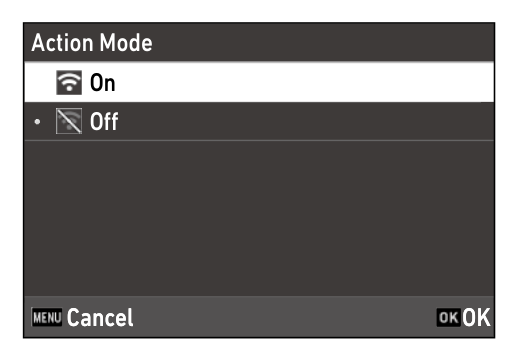
6. Forget the Bluetooth pairing and pair again
On GR III / IIIx, check the Bluetooth records on both the iPhone and the camera. For a fresh setup, remove the camera from iPhone Settings → Bluetooth and remove the phone from the camera’s paired-device list, where available in its firmware. Then register again from the app and complete pairing on the camera. Resetting the Wi-Fi name or password is a separate operation; it does not replace clearing Bluetooth pairing.
7. Update the camera firmware
Update Image Sync through the App Store and check the firmware download page for your exact camera model. GR II and GR III / IIIx firmware is installed using Ricoh’s SD-card procedure. The SD-card procedure works even when the app cannot connect.
8. Try a different companion app
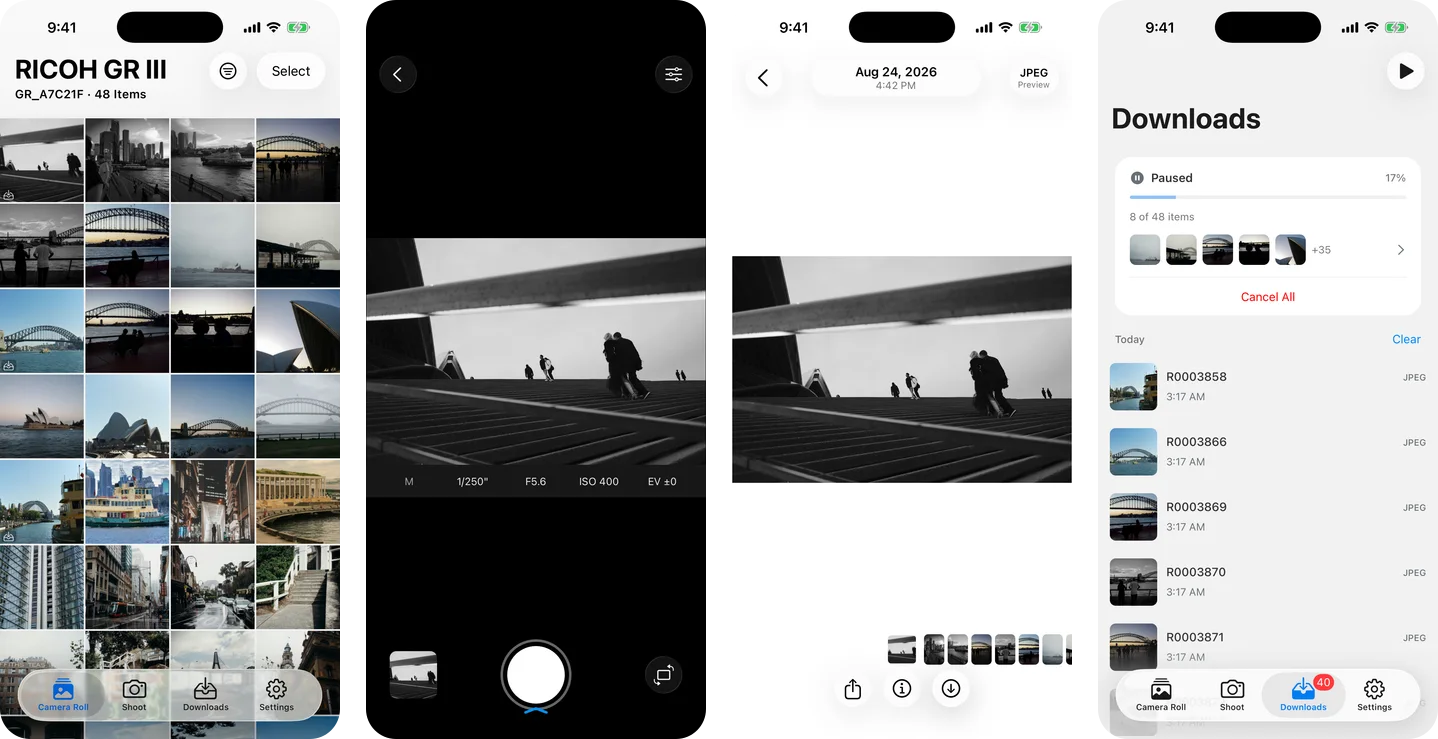
If the issue remains, try another supported app to compare the result, one app at a time. GR Snap is our independent paid app for photo transfer and, on supported models, live-view remote shooting. GR II uses manual Wi-Fi and has no remote control in GR Snap.
Official instructions: GR World FAQ, Image Sync, Ricoh.